
The purpose of @javeaplayers.com emails is to provide active members of Javea Players with a “business” email address in the javeaplayers.com domain. This provides both a more professional appearance and also enables emails to be kept separate from private emails.
When the users @javeaplayers.com email address is created the webmaster will provide the password for this email address. The email account will be set up so that all emails sent to that address will be forwarded to the users private email address.
However if the user wishes to send emails from their domain account, they will have to configure the email client (i.e. program/app) on all applicable devices, to do this. In this case the webmaster can cancel the email forwarding.
There are several ways to configure a users email program to achieve this:
- For users with private email accounts using Gmail, the domain emails can be imported to and sent from Gmail. This is the recommended solution for users with Gmail accounts.
- By logging in to Javea Players webmail via the browser (Chrome, Safari etc) a setup wizard can be used to configure the users email client program on each device.
- If the wizard above does not work, the necessary values for the configuration can be entered manually.
1. Configure Gmail to send and receive Javea Players emails
Log in to Gmail via the browser (preferably using a desktop computer)
Go to Settings > See all settings > Accounts and Import
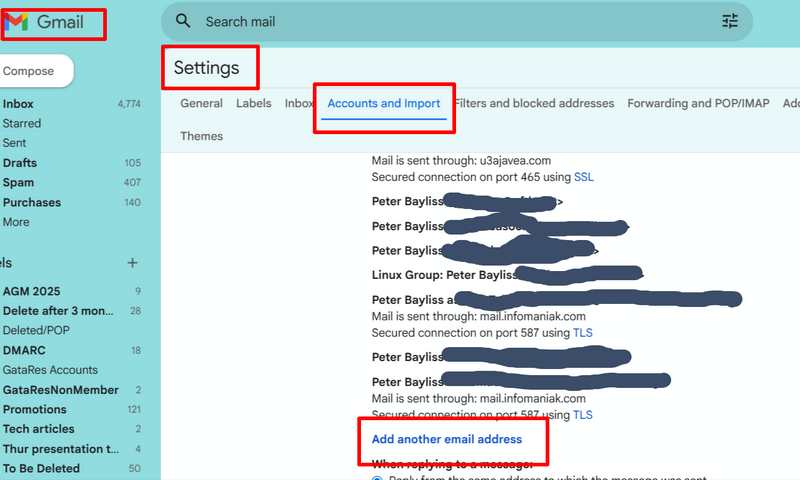
Select Add another email address
The next page will be a yellow pop up screen with the title Add another email address that you own
Enter your xxx@javeaplayers.com email address
Leave Treat as an alias ticked.
Click the Next Step Button
On the next pop up screen
SMTP Server:mail.javeaplayers.com Port 465
Username = xxx@javeaplayers.com
Password = supplied password
TLS selected
Click Add Account button
If successful you will be sent an email request to confirm to Gmail
You will now receive all emails to your Javea Players email address in Gmail and you can use Gmail filters and labels for identification if required.
2. Using the Setup Wizard
Log in to Javea Players webmail https://www.bluehost.com/my-account/login
Select the Webmail Login tab. Enter email address. Enter email password
Scroll down to
Other Webmail Features
Configure Mail Client
Click on the Protocol for your mail program (Application)
Note that if this does not work the manual settings are also provided and you can email instructions to yourself
3. Manually configure the email programs
Use Secure SSL/TLS
Username: xxx@javeaplayers.com
Password: as supplied
Incoming Server: mail.javeaplayers.com
IMAP Port: 993 POP3 Port: 995
Outgoing Server: mail.javeaplayers.com
SMTP Port: 465
Any problems, please contact webmaster@javeaplayers.com. Please provide precise information about the problem to facilitate a helpful response.